
Please login on the homepage https://mydashboard.consultinghouse.eu
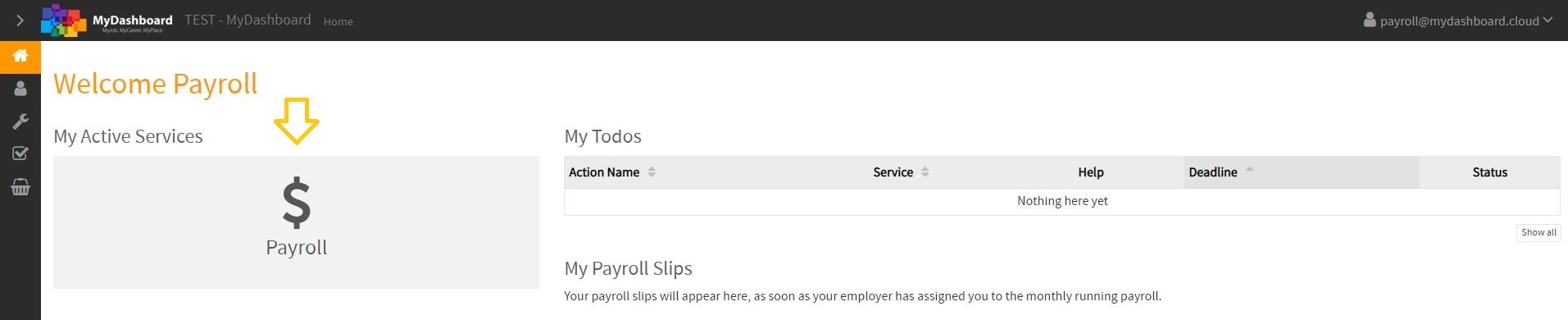
Click on the main page on your active services “Payroll”.
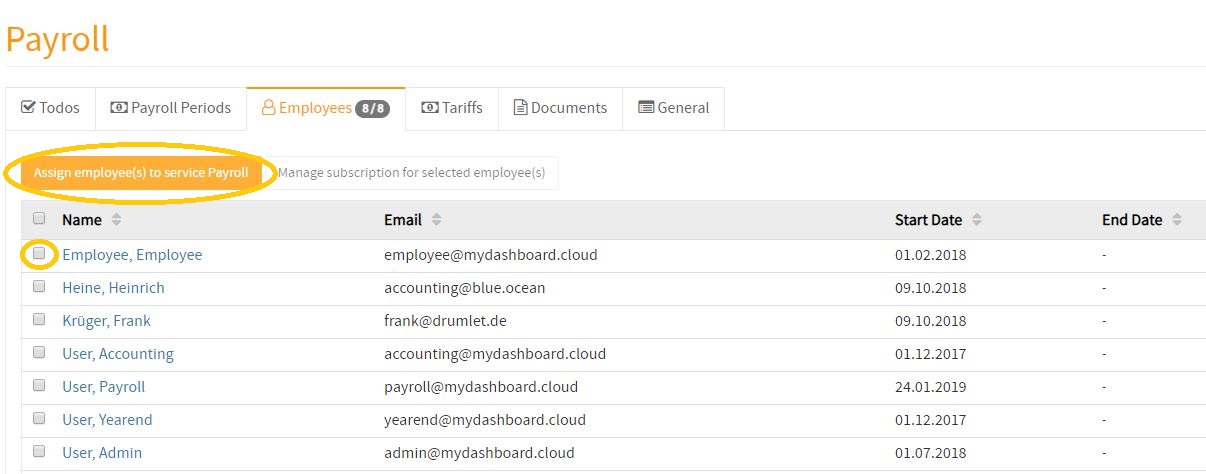
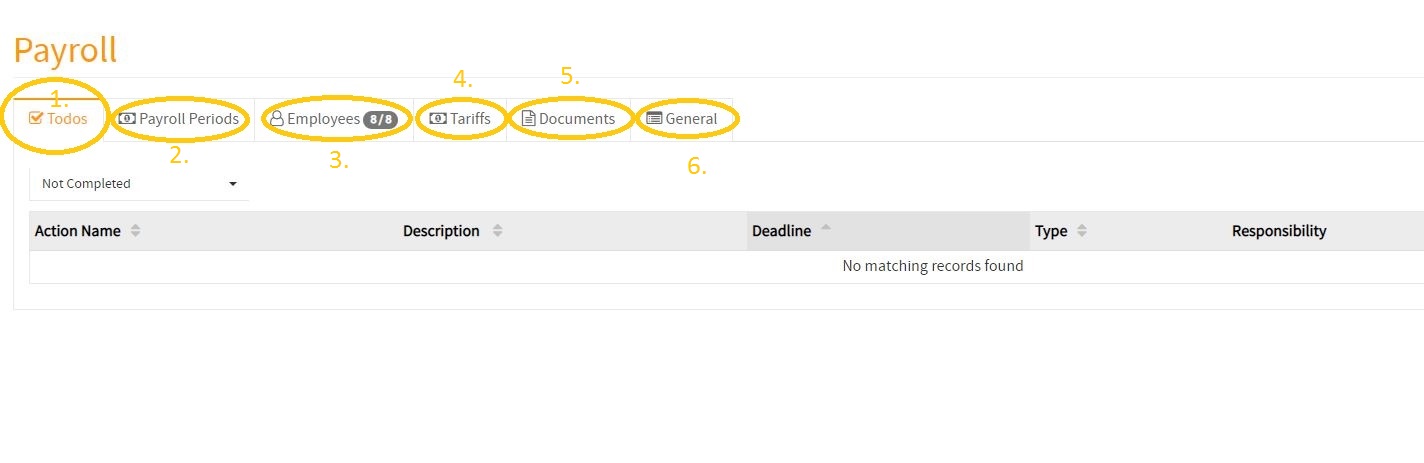
1. In the first section, you will find your payroll todo’s. In this section are payroll todo’s mentioned, that are reminding you to take care of.
2. On the second page, you will find the payroll periods. There are uploaded in different periods your monthly payroll reports and payroll slips.
3. On the third page, you will find your employee(s) names. In this section, you can manage the names and email addresses of your employee(s) etc.
You can also send them a “welcome mail” for MyDashboard, so they can login in MyDashboard to be able to see their payroll slips.
If you have any new employee(s), you can generate them in MyDashboard and assign them to your payroll service.
Please tick the employee(s) you want to assign to your payroll service.
If you have ticked your new employee(s), click on the button “Assign employee(s) to service Payroll”.
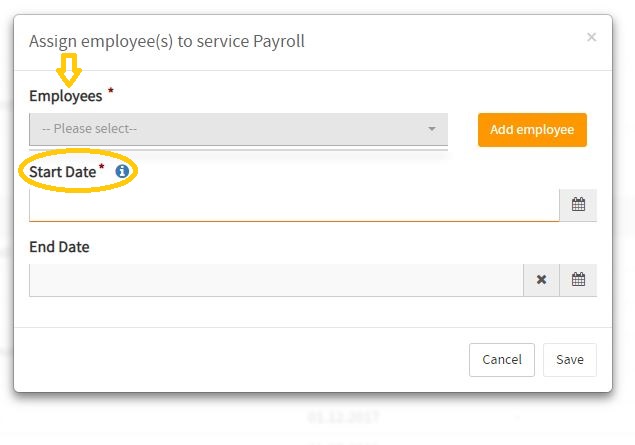
Please select then the employee(s) you want to assign to your payroll service and note the start date too.
4. On the next page, you will find your payroll tariff(s).
5. There, you will find your payroll documents. If you have any important payroll documents, you can upload them to MyDashboard.
6. On the last page, you will find general information about your payroll service.
How to manage my payroll service on MyDashboard?
In the following video, you will find a tutorial about how easy it is to manage your payroll service on MyDashboard.